 Baggel
Status System
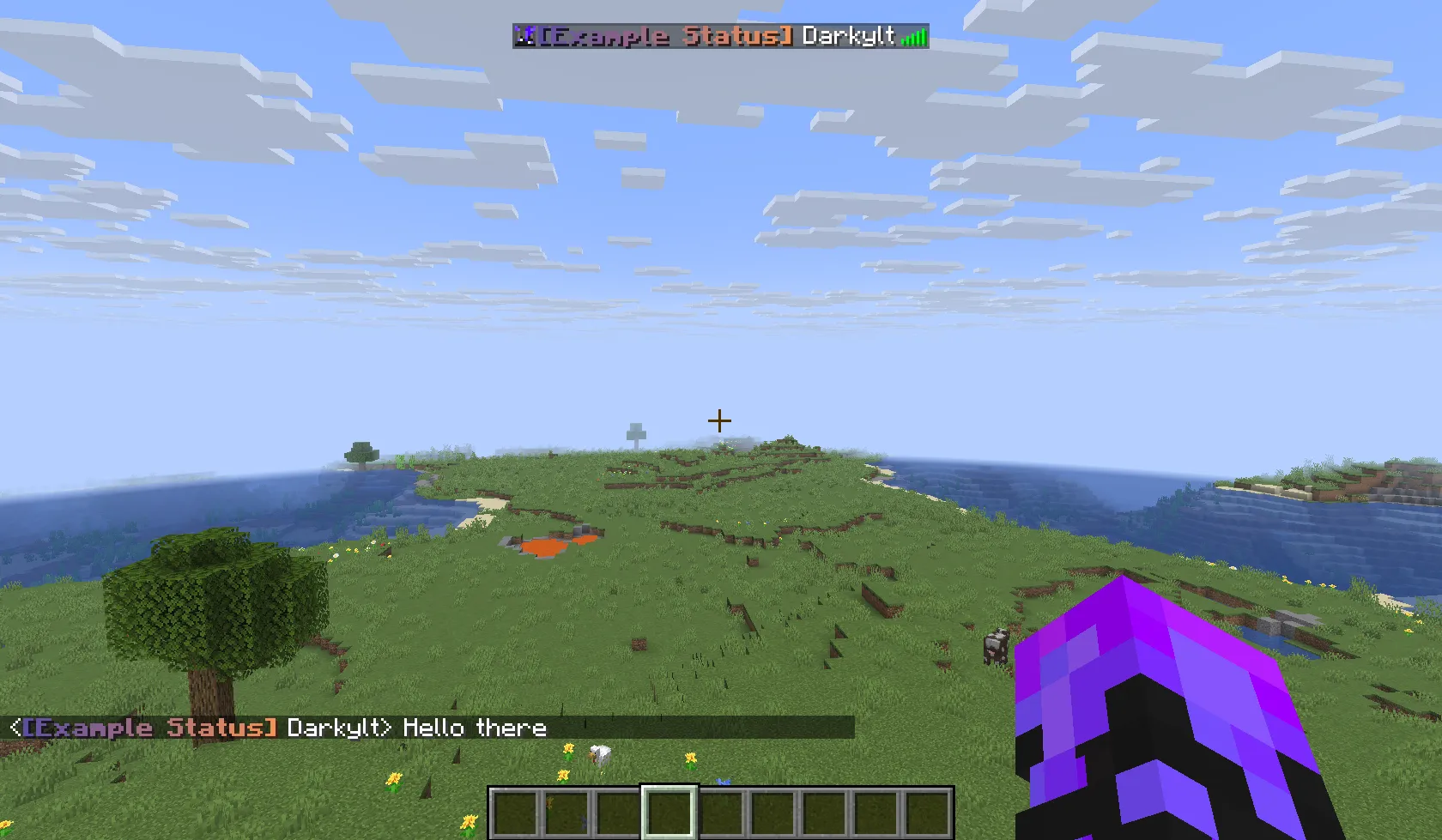
The Status System allows players to display short, colorful tags in front of their names. This page explains how to configure and manage statuses as an administrator.
Players can set and remove their status using:
/status set <status-id>
/status remove
Statuses are defined in your configuration file. A basic status entry looks like this:
example:
  display-name: "<b><gradient:#5e4fa2:#f79459>[Example Status]</gradient></b><reset> "
The key (example in this case) is the ID of the status.
It’s the value players use in their command (e.g. /status set example).
IDs can contain uppercase letters and numbers, but cannot include spaces or characters that can’t be typed in Minecraft chat.
The display-name is written in MiniMessage format. You can design these visually using tools like:
MiniMessage Viewer
or
Birdflop
(set Color Format to MiniMessage).
Always remember to include a <reset> tag and a trailing space at the end of the display-name.
Without them, the status color or formatting may leak into player names:

Restricting Access
You can limit who can use specific statuses by adding either a permissions key or a teams key.
Both accept a list of values, so you can specify multiple entries if needed.
Example: Permission-based Status
admin:
  display-name: "<bold><red>[</red></bold><gradient:#ff0020:#dd0010>Admin</gradient><bold><red>]</red></bold><reset> "
  permissions:
    - buildmc.admin
Example: Team-based Status
red-team:
  display-name: "<color:#ff0505>[Red]</color><reset> "
  teams:
    - red
You can find more information about teams on the Minecraft Wiki.
When a player tries to set a status, the system will automatically check whether they have the required permission or belong to one of the allowed teams.
Reloading Statuses
After modifying or adding statuses in the configuration file,
youcan use /buildmc status reload for changes to take effect.
A well-configured status setup keeps things visually appealing, organized, and fair for all players.